Parent ControlLimits you set in one tap, on one page.
No settings maze. One page shows today’s time, every app with its limit, and the quiet times, and you change any of it right there. Behind a parent code, so only you can.
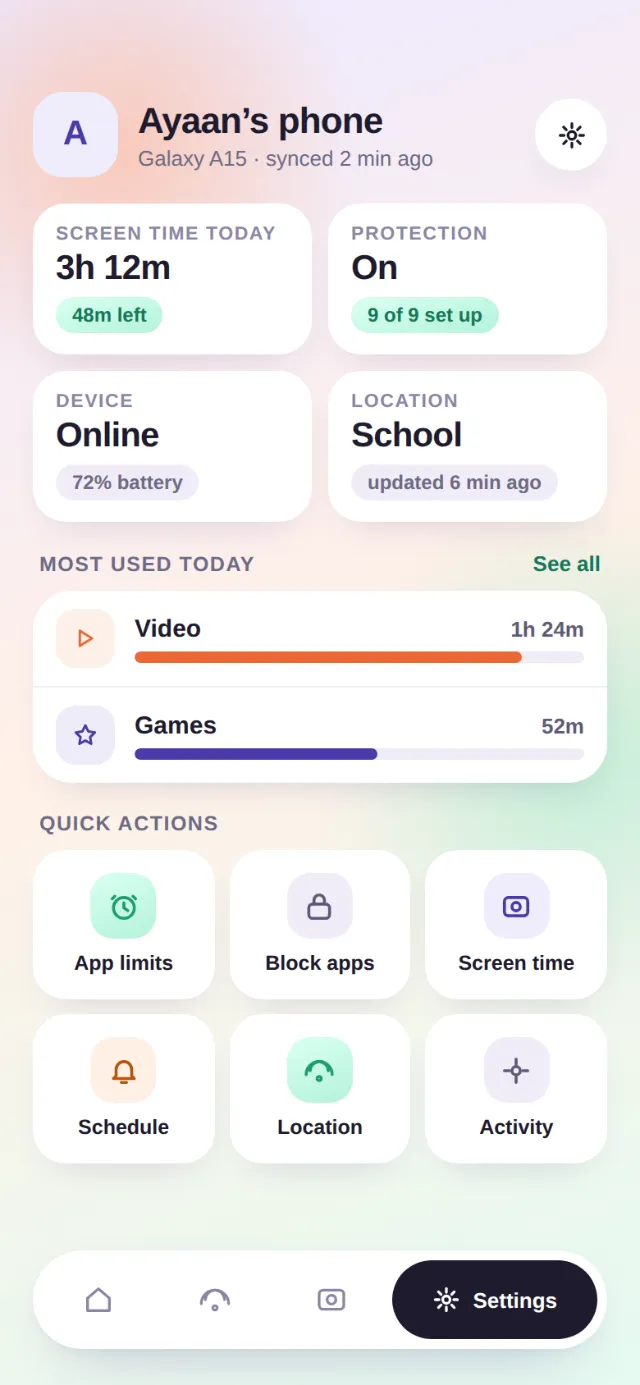
Screen time, app limits and bedtime mode. Three things, and they are enough.
A daily limit
Four hours, or whatever you decide. A warning five minutes before, so it is never a surprise.
A limit per app
Tap the app, choose 15 minutes to 2 hours or Off. Block an app entirely. Calls are never blocked.
Quiet times
School time, homework, bedtime. Pick the hours and the days; the apps you choose pause on their own.
Your child can ask. You can say yes in one tap.
When time is up, the child sees a sleepy guard and one honest button: ask for more time. The request lands on your phone; approve it, and Games is back for fifteen minutes. Every change is logged with who made it, so two parents stay in sync.
Questions people ask
A person replies, usually within a couple of hours. The promise is one working day.
01Does Parent Control work on iPhone?
The child’s phone needs to be Android for app limits and blocking; iOS does not allow apps to do that. A parent on iPhone can manage an Android child’s phone from Shoo.
02Can my child uninstall it?
With Device admin turned on, the app cannot be uninstalled without the parent code.
03What if I forget the parent code?
You can reset it from the email address on your account. Your child cannot.
04Is there a web version?
Yes. Everything on the phone is also at getshoo.app/family when you sign in, so you can manage a whole family from a laptop.
Everything else it does.
Motion alarm
Lift it off the table, the siren fires.
Pocket alarm
Leaves your pocket or bag? Siren.
Charger alarm
Cable pulled out? Siren.
Wi-Fi alarm
Walks off your network? Siren.
Intruder selfie
A photo of whoever touched it.
Night Watch
Silent. Tells you in the morning.
Clap to find
Lost in the sofa? Clap twice.
Put your phone down. Shoo watches it.
Free on Android and iPhone. The siren works before you are asked for anything.